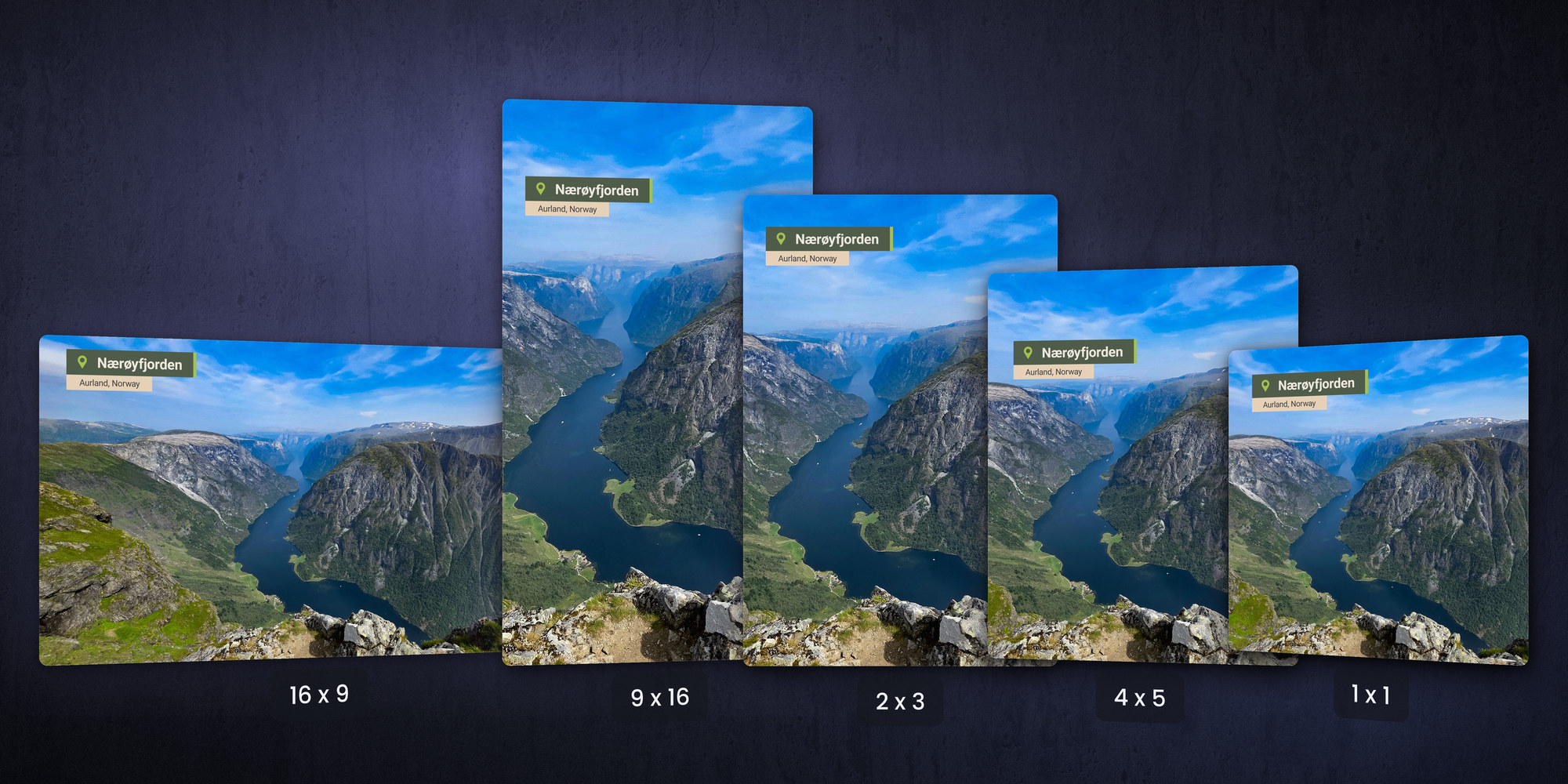
To publish natively on every platform you need your graphics in several aspect ratios, and the efficient way to get there is a single After Effects template with a frame-size dropdown. The editor picks 16:9, 9:16, 2:3, 4:5 or 1:1 and everything falls into place, with no retyping. One template, every format.
Why one template, not five
For maximum reach your videos should be published natively on each platform, and those platforms have different aspect ratios. Premiere can auto-reframe a sequence, but native Premiere graphics scale to the new resolution, which is almost never what you want. Graphics made in After Effects (MOGRTs) survive the auto-scaling, but will have a wrong layout after an aspect ratio change.
For legibility you want to design text and graphics to the target screen size, not its raw resolution, especially on small phone screens. The alternative, a separate template for every size, forces editors to retype the text in each one. We can do much better!
How it works in After Effects
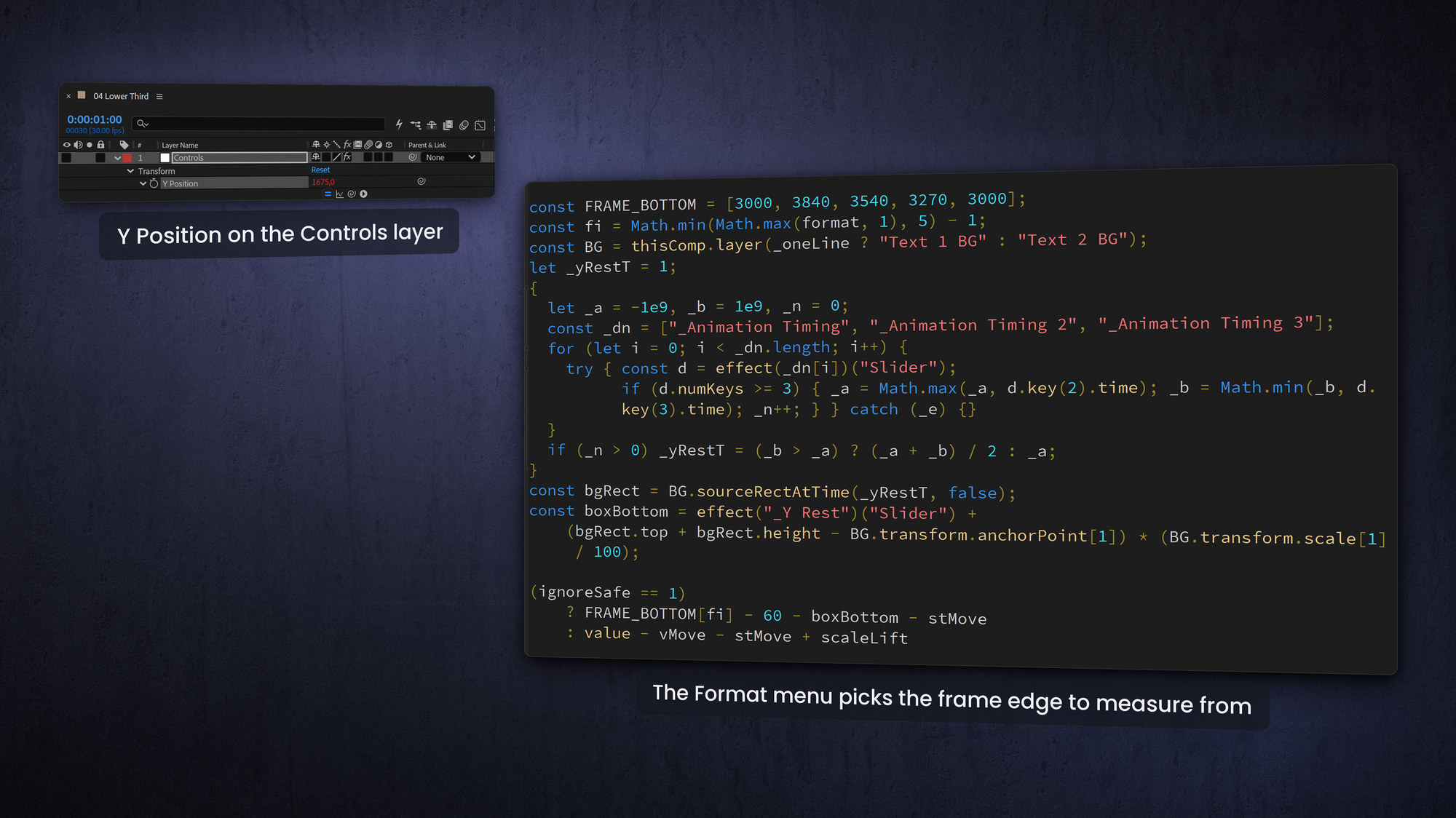
Inside the template, a single Format dropdown drives the position, scale and anchor (and any other property you need it to drive) of each layer through conditional expressions. It is a lot of if/else logic to set up the first time, but once it is done you reuse the same code in new templates, and versioning becomes a breeze for the editor.
A well-built package covers 9:16, 2:3, 4:5, 1:1 and 16:9, in both UHD and HD resolutions, from that one control.
Write cleaner conditional code
Long if/else blocks get hard to read fast. For simple switches, the ternary operator is much tidier. The pattern is to read the dropdown once, then choose a value. Here's an example for Position:
const displayFormat = effect("Format")("Menu");
(displayFormat== 1) ? 100 : 0 // show in this format, hide otherwise
You can chain ternaries to pick a position per format, which keeps an entire layout decision in a few readable lines:
const displayFormat = effect("Format")("Menu");
displayFormat == 1 ? [960, 540] : // 16:9 HD
displayFormat == 2 ? [540, 960] : // 9:16 vertical
displayFormat == 3 ? [540, 675] : // 4:5
[540, 540]; // 1:1 square
Arrays and switch statements work very well here too, if you know those. The point is to keep the logic compact and reusable, because you will paste it onto a lot of properties.
Design once, reflow automatically
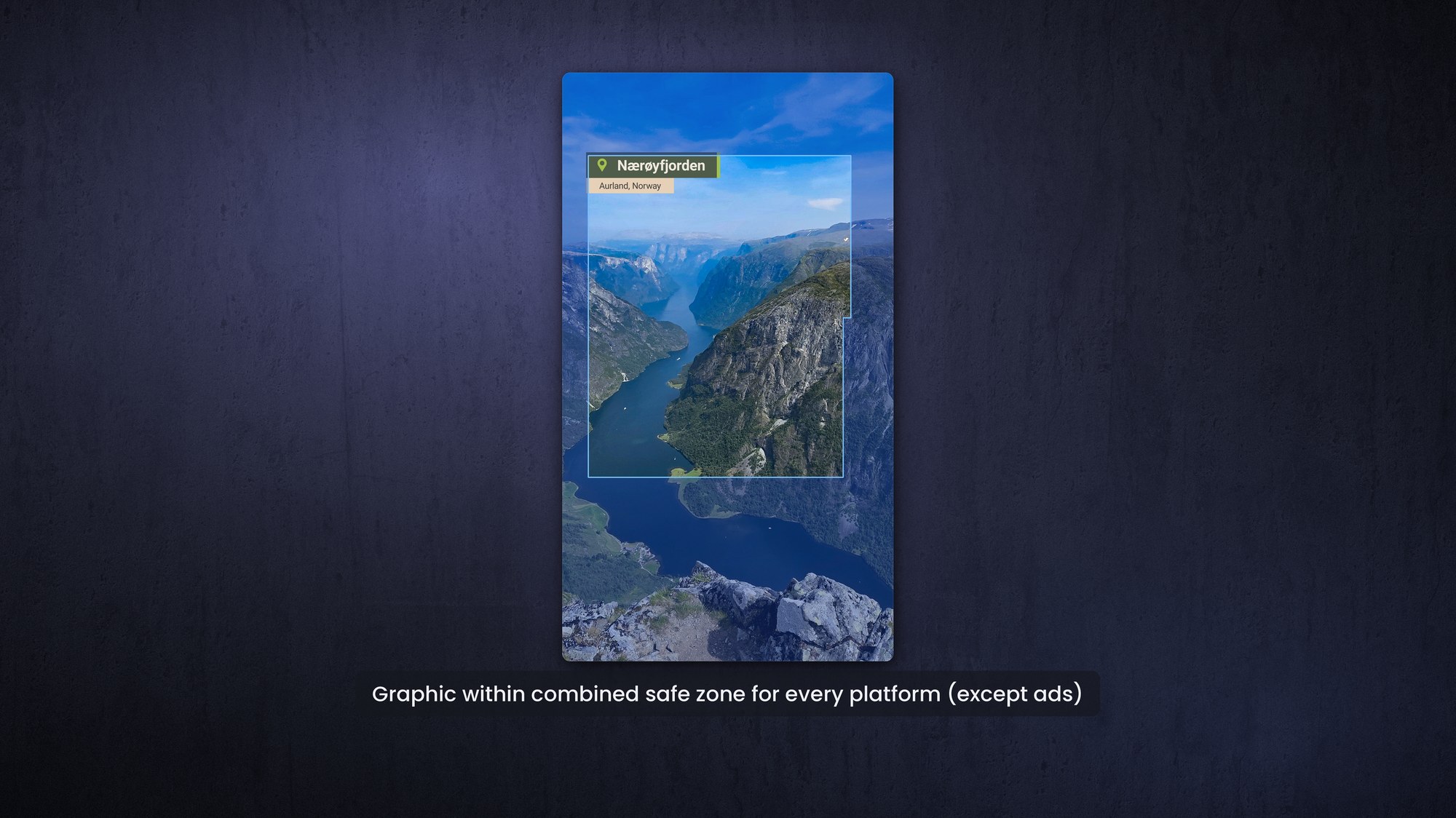
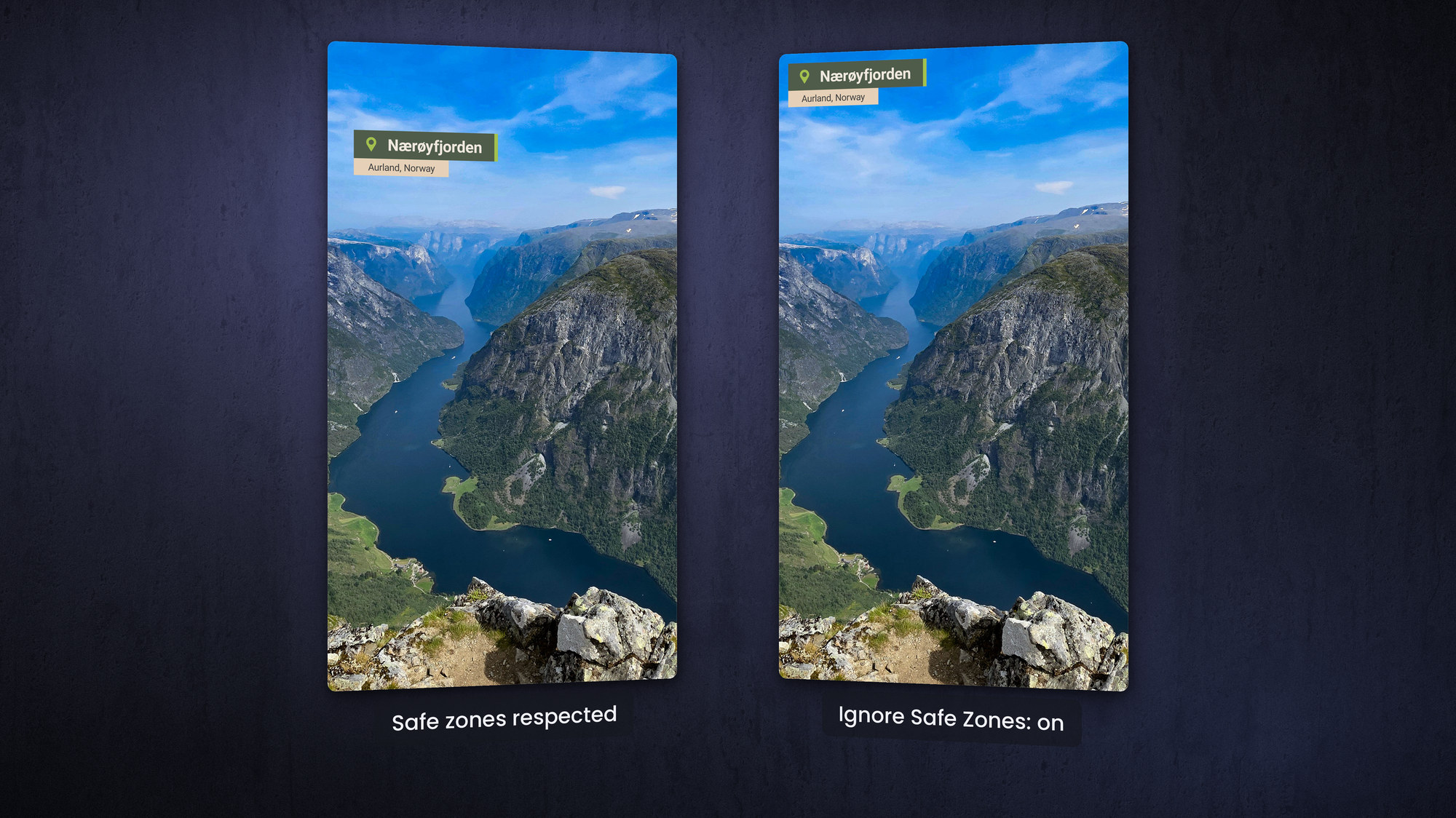
The payoff of building in After Effects is automatic design behavior. Layers align themselves, and if a line of text is deleted the others adjust. Pin elements to the safe areas for each format so titles never collide with the platform's own interface.
It helps to include a safe-zone overlay so editors can see exactly where TikTok, Instagram or YouTube will place their buttons, every MOGRTizer package ships with a free Safe Zones template for precisely this reason.
One click for the whole timeline
Switching formats is two clicks for the editor, but only because you did the hard work once. Take it one step further and give editors a panel or script that sets every template's Format dropdown to the same value in a single click. The MOGRTizer Batch Sync plugin does this, and much more.
When you are versioning a timeline for several channels, that is the difference between minutes and seconds.
Do not forget captions and interlacing
Two practical details. First, leave room for subtitles by offering a captions control with options for one line, two lines, or off. Second, interlacing: templates made in After Effects do not support fields, so for an interlaced timeline you build at double the frame rate (a 50i timeline needs a 50p template, a 60i timeline needs a 59.94p template) and set the motion blur to 360 degrees to match footage shot interlaced.
Frequently asked questions
How do I make one MOGRT work in vertical and horizontal?
Build it in After Effects with a Format dropdown that drives each layer's position and scale through expressions. The editor switches format from the menu with no retyping.
Should I scale graphics to resolution or to screen size?
Usually to screen size, especially for text. Scaling to raw resolution can make titles too small to read on phones.
Do I need separate MOGRTs for TikTok, Instagram and YouTube?
No. One well-built After Effects template can cover all the common aspect ratios, and a safe-zone overlay keeps your titles clear of each platform's interface.
How do I handle interlaced timelines?
After Effects templates do not support fields, so build at double the frame rate (50p for 50i, 59.94p for 60i) and set motion blur to 360 degrees.