Plug-in for Premiere and DaVinci Resolve Studio
Change every template on the timeline at once
Set up one template the way you want it. Batch Sync copies the settings you choose to every other template on the timeline — one click, and one undo if you change your mind.
Forty lower thirds, and the client wants them blue
You know the moment. The edit is locked, forty graphics are in place, and then the note comes in: "Can we use the other brand color?" Or: "Can we have them all left aligned?" Or: "We need a 9:16 version for Reels."
In Premiere that means selecting each clip, finding the right control in Properties, changing it, and moving on to the next one. Forty times. And somewhere around clip 27 you miss one — the one the client spots.
Batch Sync turns that into one click.
What does Batch Sync do?
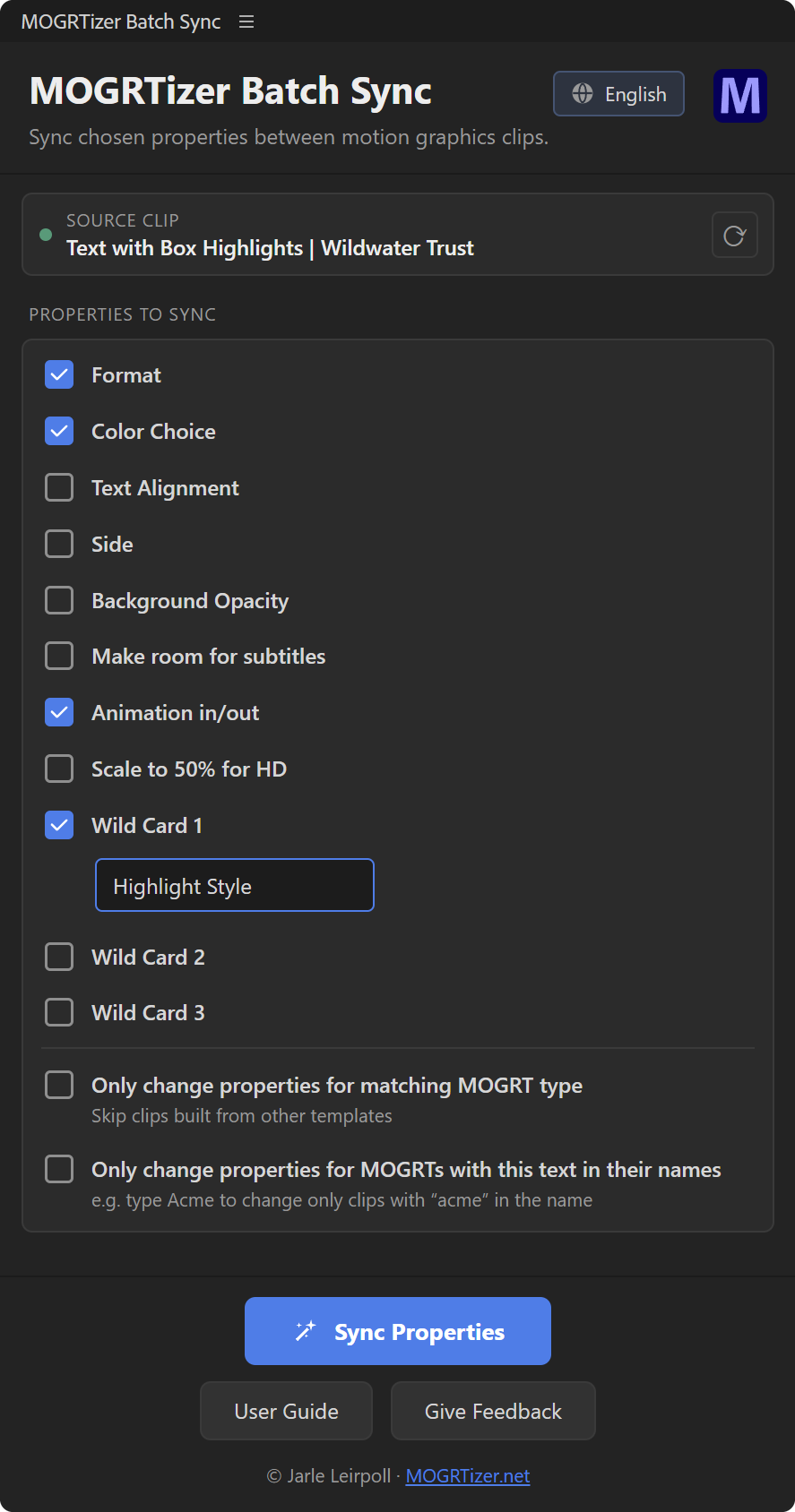
Batch Sync is a panel for Adobe Premiere and DaVinci Resolve Studio. You pick one template clip in the timeline as the source, tick the properties you want to copy, and click Sync Properties. Every other template clip on the timeline with the same control gets the same value, or you can choose which ones.
Your text stays where it is. Every name and every title is untouched — only the settings you ticked change.
How does it work?
- Pick the source. Select one template clip in the timeline and set it up in Properties (Premiere) or the Inspector (Resolve). The panel shows it as the source clip.
- Tick what to copy. Format, Color Choice, Text Alignment, Side, Background Opacity, Make room for subtitles, Animation in/out, Scale to 50% for HD. For any other control, type its name in a Wild Card.
- Choose which templates to sync to (optional). Only templates of the same type — say, every Lower Third — or only those with a given text in their names, like Acme.
- Sync. Click Sync Properties. The log reports clip by clip. Changed your mind? Undo last sync puts everything back.
Can I limit which clips it changes?
Yes. Two switches narrow it down:
- Only change properties for matching MOGRT type — only clips built from the same template. Change every Lower Third, leave the Location Pins alone.
- Only change properties for MOGRTs with this text in their names — type Acme, and only Acme's templates change in a sequence with graphics from several brands.
A property only reaches clips that have that control. The log tells you how many were skipped, and why.
What do I need?
- Adobe Premiere 26.0 or newer, Windows or macOS.
- Or DaVinci Resolve Studio 21.1.2 or newer, Windows or macOS, with the OGraf versions of the templates.
- MOGRTs built in After Effects — mine or anyone else's. Premiere's own graphics and other clips are skipped.
- Included with every MOGRTizer template package. Also coming soon to Adobe Marketplace.
- Install steps in the Guides.
A UXP version of this plugin will be available once Adobe has achieved full feature parity for UXP plugins in Premiere.
FAQ
Frequently asked questions
Does Batch Sync change my text?
Not unless you ask it to. Text isn't one of the named controls. Point a Wild Card at a text field, and the source clip's text is copied to every match — handy for a label that repeats, like a show name.
Why doesn't Ctrl/Cmd + Z undo a sync?
Premiere's own undo doesn't see changes made by an extension. Use Undo last sync in the panel. It goes one sync back.
Does it work with MOGRTs that aren't from MOGRTizer?
Yes, as long as they're built in After Effects, and the named controls match the names in my templates; for any other template, type the control's name in a Wild Card.
Does it work on the whole project?
It works on the sequence you have open. Run it once per sequence.
Can it set the Format to match my sequence?
Yes, for MOGRTizer MOGRTs. Click Match Format to sequence, and every MOGRTizer MOGRT in the sequence gets the Format that matches the sequence's aspect ratio. Tick Automatically for new MOGRTs to do the same for each one you add. Undo last sync also reverts it.
What is the yellow line under Source clip?
It tells you how many UHD templates an HD sequence holds. That's fine if you chose them on purpose; otherwise the HD versions play back more smoothly, and MOGRTizer Resolution Swap can swap them for you.
Does it work in DaVinci Resolve?
Yes. Every package also includes Batch Sync for DaVinci Resolve Studio 21.1.2 or newer, Windows or macOS. Select one OGraf clip on the timeline as the source, and sync Color Choice, Alignment, Background Opacity, Keep Clear for Subtitles and Animation in/out to the other OGraf clips, with the same Wild Cards, filters and Undo last sync. Match Format and the yellow UHD line are only in Premiere: the OGraf templates have no Format menu.
The free version of Resolve can't run panels, so the package also has three scripts for it: Sync Color Choice, Sync Alignment and Undo Last Sync.
Get Batch Sync with your templates
Every MOGRTizer package comes with Batch Sync, the Timeline Plotter, Resolution Swap and the free Safe Zones MOGRT. Your colors, your fonts, every aspect ratio.