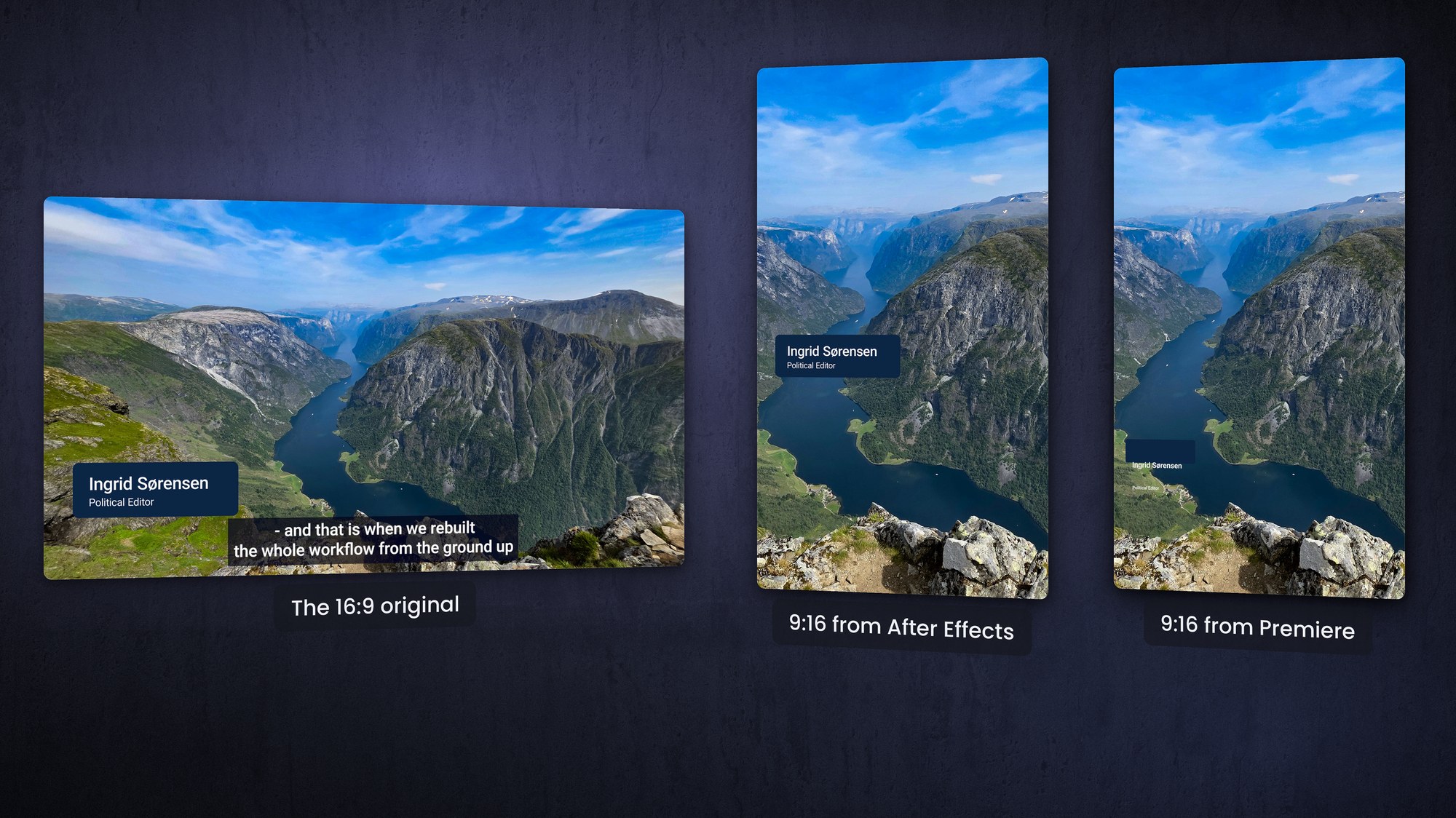
You can build templates in both After Effects and Premiere, but for brand-safe, multi-format, genuinely user-friendly MOGRTs, build them in After Effects. The short version: Premiere-made templates rescale and reflow their layers when you change the frame size, and there is nothing you can do to stop it. After Effects templates give you full control, always correct layout, and one template that works in every aspect ratio.
Two kinds of MOGRT: .aegraphic vs .prgraphic
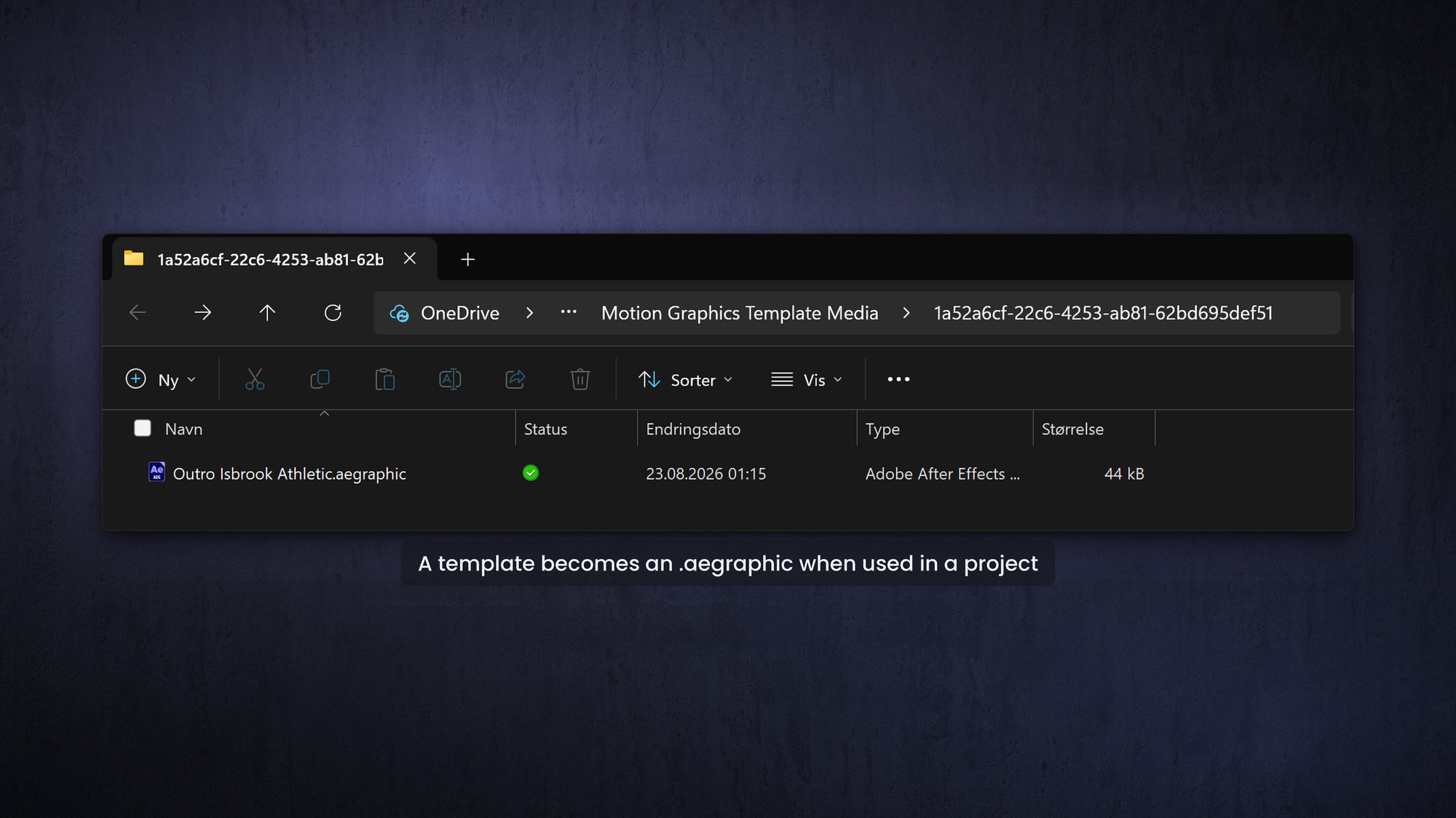
Not sure whether a template you already have was made in After Effects or in Premiere? Add it to the timeline, right-click and choose Reveal in Explorer or Reveal in Finder. If you land on an .aegraphic file it was made in After Effects. If you see a .prgraphic file it was made in Premiere. That single detail tells you most of what you need to know about how it will behave.
The deal-breaker: what happens when you change the frame size
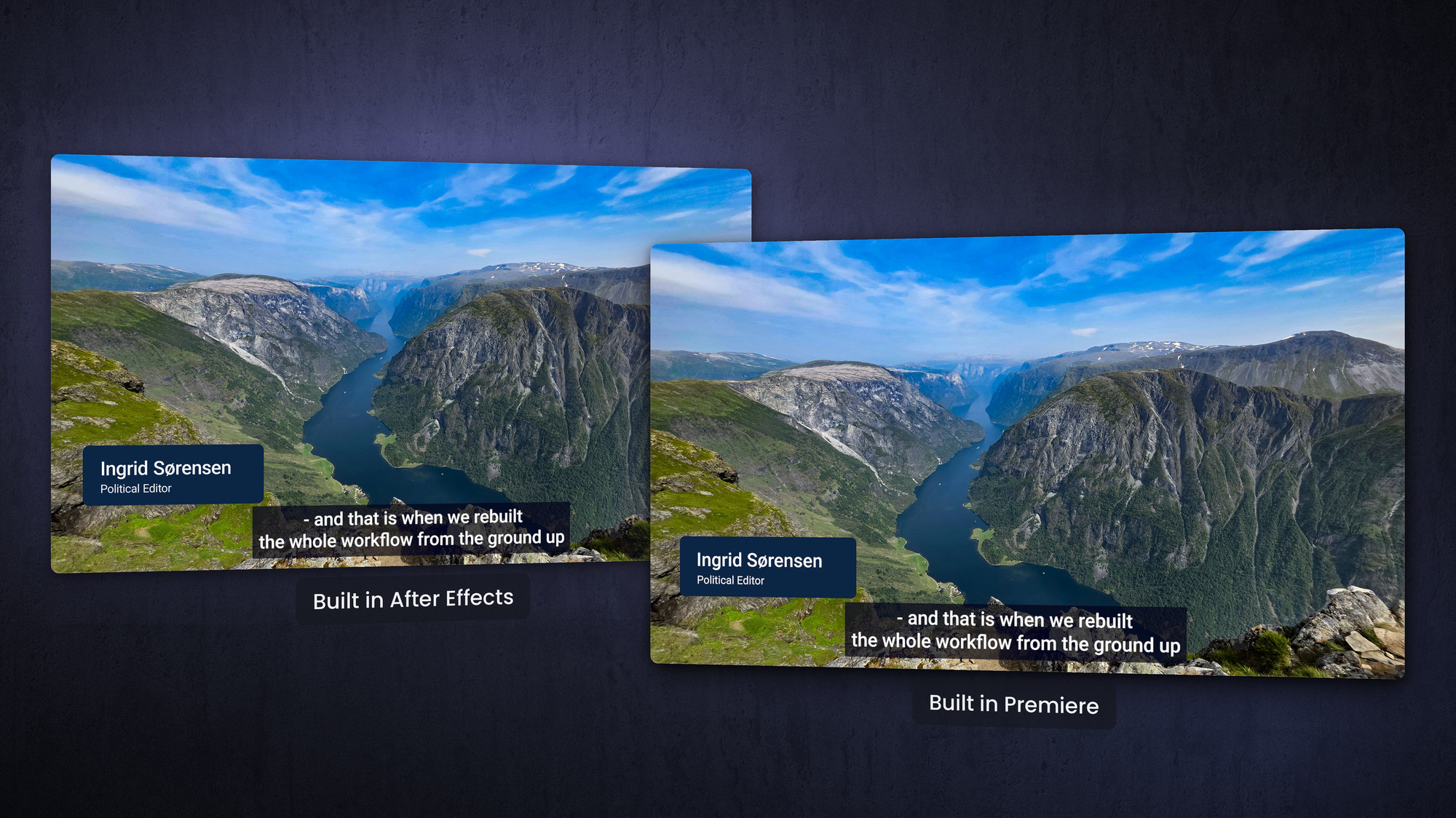
Premiere can make a good-looking graphic. Below is the same lower third twice, once from an After Effects template and once built with Premiere's own text and shape tools. Using the same font, same plate, same position, you wouldn’t be able tell them apart in the original sequence. Premiere is perfectly capable of design.
Now put both in a 9:16 sequence. The After Effects template has a Format dropdown menu: the graphic stays the size it was designed at, and moves to where a vertical frame needs it – taking social media safe zones into account (because I designed it that way).
The Premiere graphic does something else. When the frame size changes, Premiere rescales and repositions every layer in the graphic on its own, so the plate, the name and the job title each get a new size and a new position — and the design comes apart. In the frame in the middle the name and title texts have slid off their plate and below it – and the whole thing will be hidden by the UI in Instagram, TikTok and other apps.
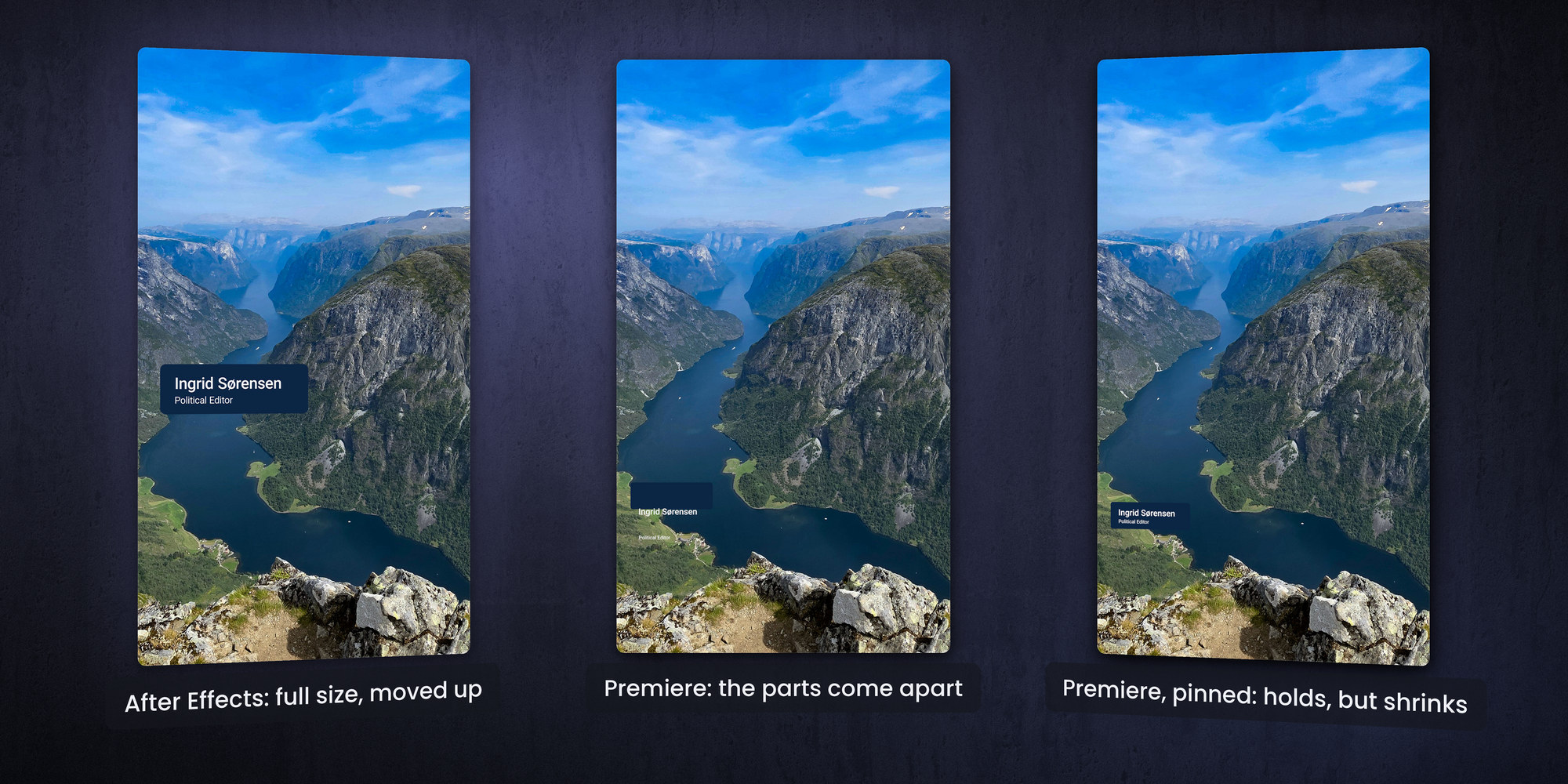
You can fix the position problem if you set the anchor points deliberately and pin the layers properly before you copy the graphic across. Then at least the parts stay together — the right frame above. What you cannot do is stop the scaling. Premiere scales the graphic by the ratio between the two frame widths, and 1080 divided by 1920 is 56%. The whole graphic arrives a little over half the size it was designed at, every time, and the only way back is to scale it up by hand and check it again.
But the scaling is done from the center of the frame, so now your graphic is outside the frame, and must be repositioned.
You can see where this is going. In a busy editor’s life, it’s a very frustrating workflow, and you need to design and maintain one template per format per MOGRT. That is a lot of templates!
It is worth asking who that scaling is for. The 16:9 cut and the 9:16 cut are usually watched on the same screen — a phone. Shrinking the type to 56% because the frame got narrower makes it harder to read on exactly the device the vertical version was made for.
There is a second problem that scaling can never solve. In a vertical frame the layout should not be the same. The bottom of a 9:16 frame belongs to captions, the engagement rail and the platform's own interface, which is why the safe zones for Reels, Stories, TikTok and Shorts look nothing like broadcast safe zones. A vertical lower third has to move, and not necessarily scale. That is a design decision, not a simple transform — and a graphic that can only scale has no way to make it.
Look again at the left-hand frame: the After Effects template has moved the lower third up and kept it at full size, because that is what the format asks for.
The usual workaround is to keep a separate template for each frame size. But then you retype every field, in every template, every time the same story goes to another channel. After Effects solves it properly: one template with a frame-size dropdown, and the editor switches between 16:9, 9:16, 4:5 and 1:1 without retyping a word — with the type size, the layout and the safe-zone placement all changing with it. Hand your editors a clever panel and one click sets every template in the timeline to the same format.
Brand fidelity by design
In After Effects you can lock the brand colors and fonts and expose them as curated dropdown menus, so an editor chooses an approved color set rather than picking any color they like. You can Universalize the code so the template behaves the same in every language version of Premiere. That is how you guarantee a consistent visual identity no matter who is editing, including freelancers and agencies.
Automatic layout you cannot do in Premiere
After Effects expressions let you build behavior that Premiere simply cannot match: text that aligns itself, lines that re-flow when you delete one of them, and rich type animations that adapt to the content. The template does the design thinking so the editor does not have to.
But isn't Premiere faster?
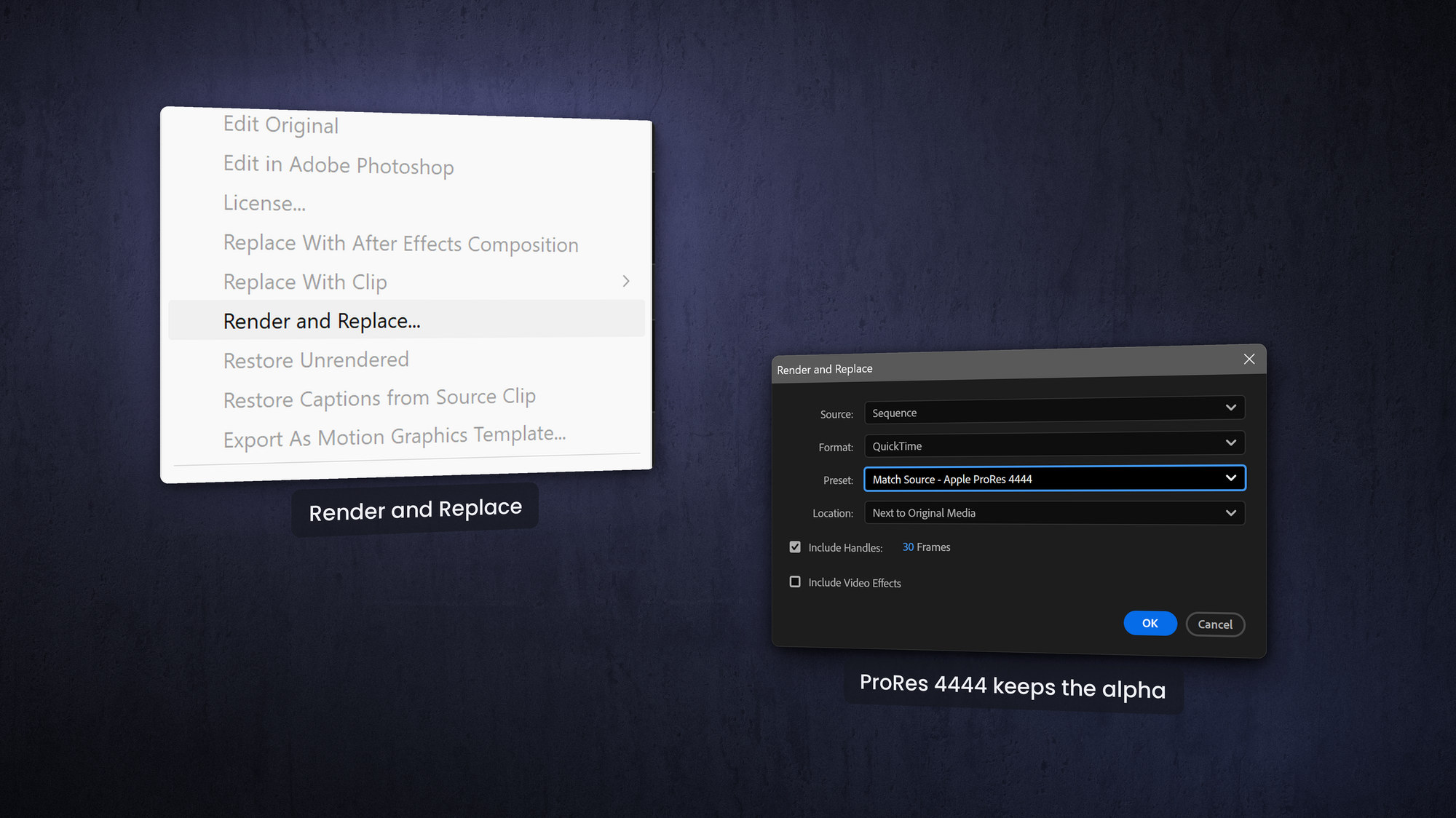
Yes! Graphics made in Premiere play back more lightly in the Premiere timeline, while After Effects templates are a bit more demanding and, on some systems, a complex one may drop frames. The fix is easy and built in: Render and Replace. Right-click the clip, render it to QuickTime ProRes 4444 (the 4444 keeps the alpha channel), and you can move the rendered clip around freely without re-rendering.
Need to edit the template again? Restore Unrendered in the same right-click menu brings the live controls back. Set a custom keyboard shortcut for both these commands for quick access. You trade a small, easily managed playback cost for a huge gain in flexibility and brand control.
The catch
After Effects templates are considerably harder to make. That is the honest trade-off. The good news is it is learnable: you can start with the free Making MOGRTs eBook I wrote for Adobe, hire someone to build them, or book a workshop so the knowledge lives in-house. However you get there, the templates your editors end up with will be far more capable than anything built in Premiere.
Frequently asked questions
How do I know if a MOGRT was made in After Effects or Premiere?
Add it to the timeline, right-click and choose Reveal in Explorer or Finder. An .aegraphic file means After Effects; a .prgraphic file means Premiere.
Why does my Premiere title move when I change the sequence size?
Premiere rescales and repositions every layer in a graphic when the frame size changes, and you cannot turn it off. Deliberate anchor points and pinning keep the layers together, but the whole graphic still arrives scaled by the ratio of the frame widths — 56% when going from 1920 to 1080 — and it still cannot reposition itself for vertical safe zones. Templates built in After Effects can switch format instead of scaling.
Can one template handle both vertical and horizontal video?
Yes, if it is built in After Effects with a frame-size dropdown. One template can cover 16:9, 9:16, 2:3, 4:5 and 1:1 with no retyping.
Are After Effects MOGRTs slower to play back?
They can be heavier than Premiere-made graphics, but with optimized code, simple templates play smoothly. Render and Replace gives you smooth playback of complex templates while keeping them editable.