With custom folders, shared libraries for teams, and a couple of tricks for heavy templates, a big collection stays fast to browse and easy to hand off. Here is how to keep a MOGRT library under control.
Tidy the panel with custom folders
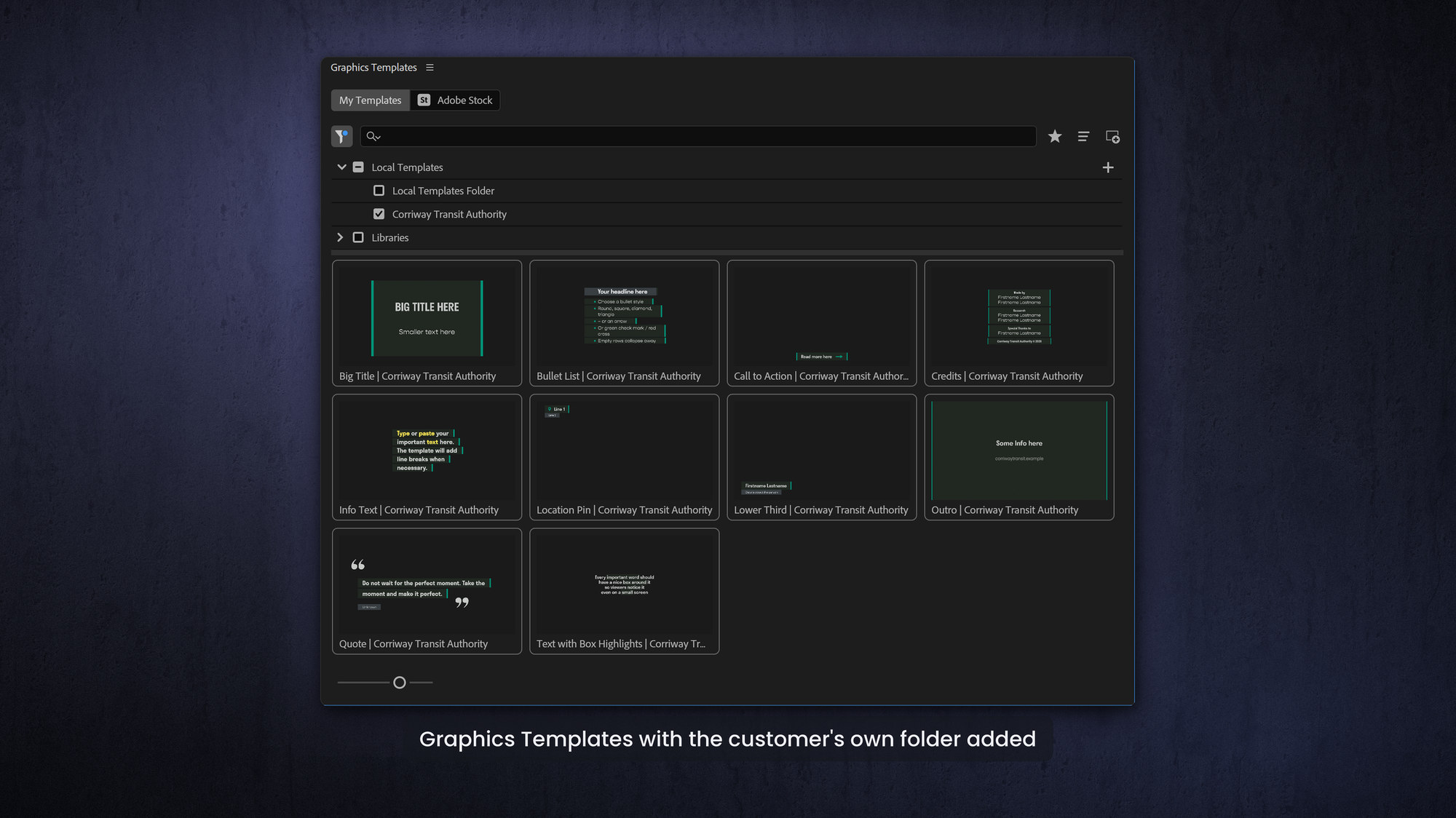
The default Local Templates folder is hidden and gets cluttered fast, especially once Premiere's built-in templates (and maybe even some leftovers from Adobe Rush) pile up. A better approach is custom folders. Create a normal folder in a convenient, non-hidden location, add your .mogrt files, then use the big Plus button in the Graphics Templates panel in Premiere to add it.
Your folders appear in a Local Templates list you can switch between, which is perfect when you work for different clients and only want to see one client's templates at a time. One caveat: Premiere ignores anything inside subfolders, so keep your .mogrt files at the top level of each folder.
To prune the factory templates you will never use, use the panel's search bar to find a group, like the Sports ones, and delete them.
Share with a team using Libraries
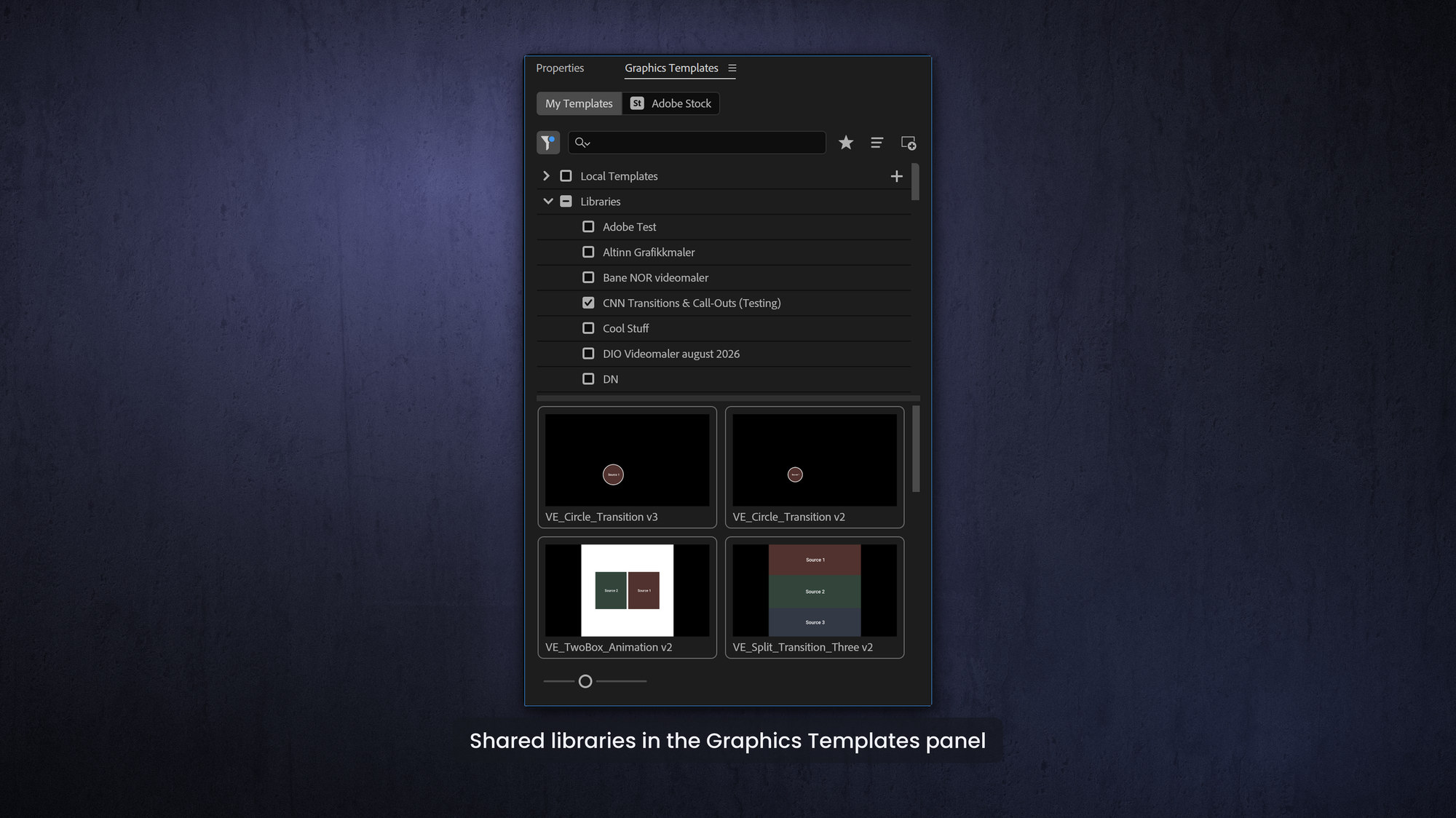
The best way to share templates across a team is Creative Cloud Libraries. There is a Libraries panel in both After Effects and Premiere (Window > Libraries) where you add, rename and organize libraries, and when you export a template you can save it straight into one.
Everyone on the library always has the newest version, and only the newest, which beats emailing files that immediately go stale.
This also answers a question I hear a lot: an editor built a lower third as a .mogrt, it has lived in their Graphics panel for ages, and now they cannot work out how to get it back out to share. Reveal in Explorer just points at an .aegraphic file that will not install as a template.
The fix is to share it through a Library, re-export it from After Effects (After Effects can open that .aegraphic file) or share that .aegraphic as an asset rather than as a template.
Keep heavy templates loading instantly
A .mogrt file is really just a zip file. When you drag an After Effects template onto the timeline, Premiere unzips it into an .aegraphic file on your scratch disk – but the .aegraphic file is also really just a zip file. Yes, a zip within a zip.
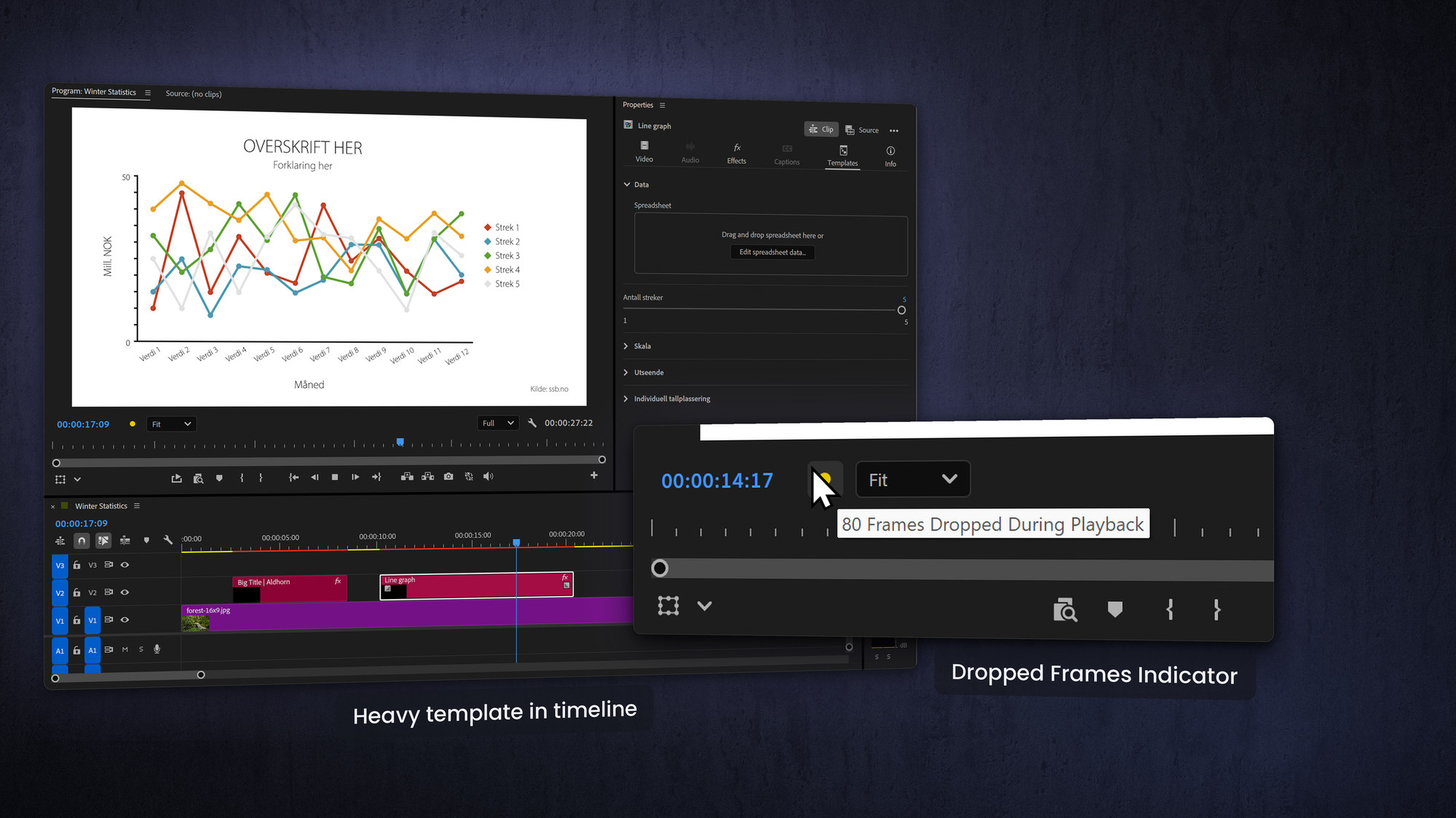
For complex templates, or ones with lots of embedded media, that unzip can take a while; I've seen minutes on a system low on RAM. The trick is to keep your heaviest templates on a timeline in a separate project and copy and paste an instance from there into your edit.
Because you are copying an already-unzipped instance, it appears instantly. It is also a neat way to keep a tweaked version of a template, with your own settings, without adding a fresh copy (with default settings) from the Graphics Templates panel every time.
Fix slow-loading projects
If templates that load instantly in a small project crawl in a big one, you are usually running out of RAM. I have seen templates take more than two minutes to appear. Slimming the project down, turning it into a Production, and splitting it into smaller projects made the exact same templates appear instantly. The template was never the problem; the project was.
Productions and Team Projects gotchas
Two final pitfalls for shared workflows. In Productions, images used in image-replacement drop zones can go offline; to avoid it, import the images into the project first and drag them from the Project panel into the drop zone (if they come from a library, right-click and Add to Project first).
In Team Projects, keep the Motion Graphics Template scratch disk folder inside your shared storage, so templates stay intact when you move, back up or hand off the project.
Frequently asked questions
How do I add my own MOGRT folder in Premiere?
Create a normal folder, add your .mogrt files, then click the big Plus button in the Graphics Templates panel and choose it. It appears in the Local Templates list. Note that subfolders are ignored.
How do I share a MOGRT with another editor?
Re-export the template from After Effects to a Creative Cloud Library so everyone has the latest version. You can share Libraries by clicking the Share button in the Adobe Creative Cloud desktop app: Files > Your Libraries > [Library you want to share].
You can also share the underlying .aegraphic as an asset rather than a template, but you lose the always-up-to-date advantages of using a Library.
Why do my MOGRTs take so long to load?
Heavy templates unzip on the scratch disk, which is slow when RAM is tight. Keep big templates in a separate project and paste an instance, and slim large projects into Productions.
Why do MOGRT images go offline in Productions?
Drop-zone images can disconnect if they were not in the project first. Import them to the project and drag from the Project panel into the drop zone to keep them online.