Templates made in After Effects are heavier than ones made in Premiere, so lean code is the difference between real-time playback and dropped frames. Optimizing a MOGRT is not just housekeeping; it is what makes a template feel instant in the Premiere timeline instead of stuttering. Here is the workflow I use to speed them up.
First, find the bottleneck
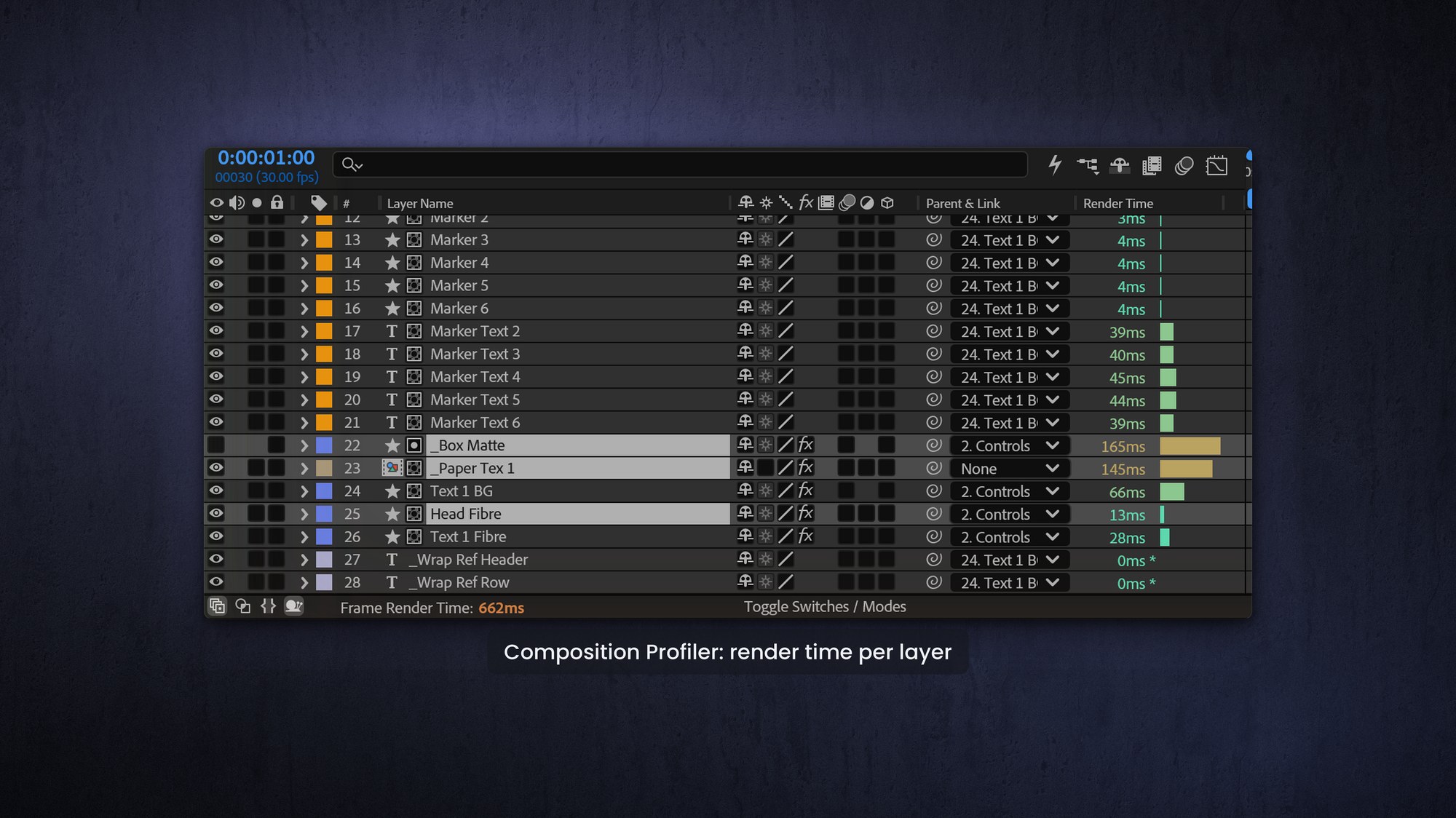
Do not guess. The Composition Profiler in After Effects (the snail icon) tells you which layer, effect or expression is taking the longest to render. It is not perfect, an expression on one layer can change how long another takes, so expect some trial and error, but it points you at the biggest time hog so you optimize the thing that actually matters.
Adopt lean expression habits
A few habits keep expressions cheap to evaluate:
Calculate in place. Do the math directly in each expression rather than pulling values from other layers, which adds dependency overhead.
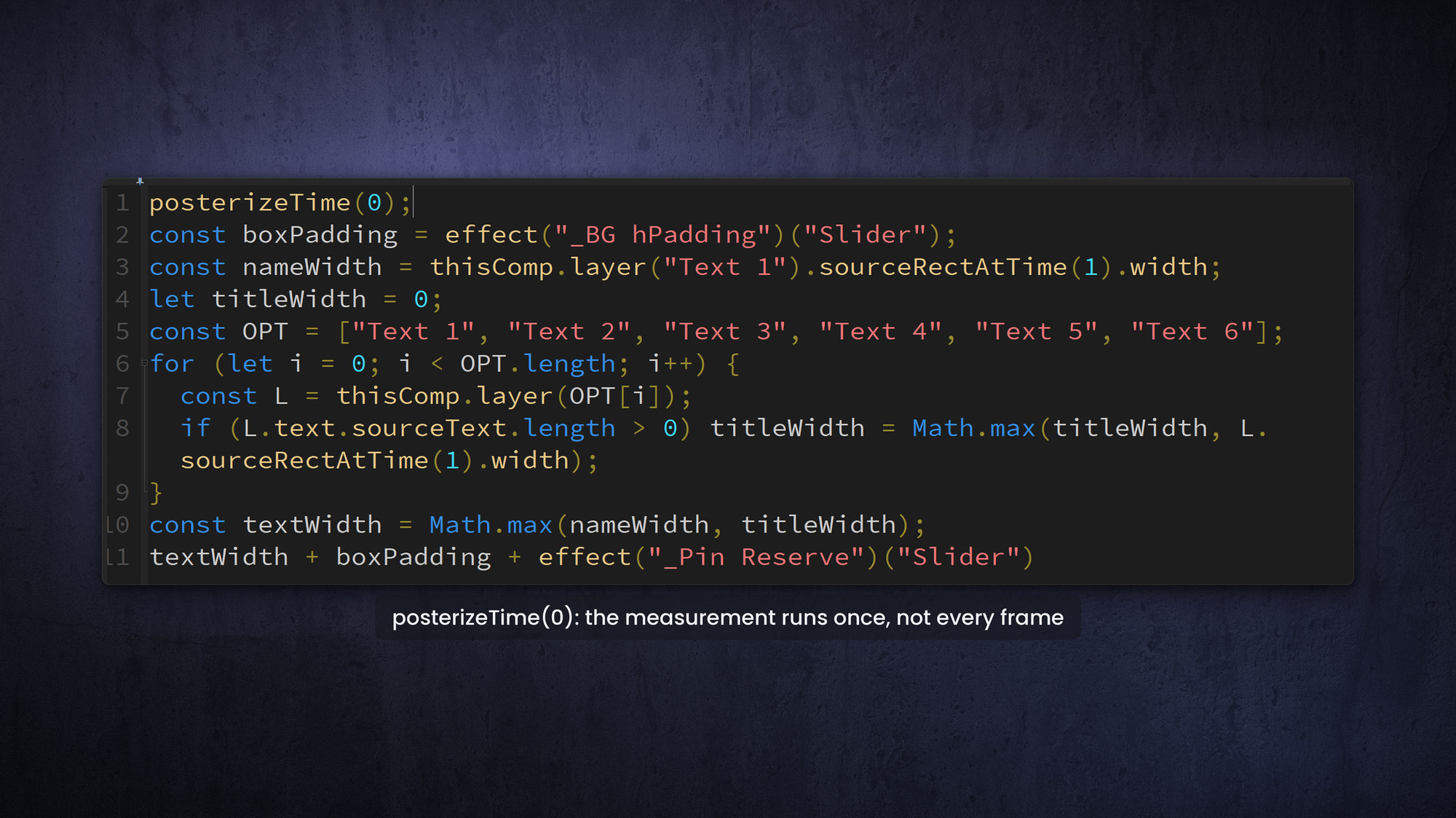
Pin sourceRectAtTime() to a frame. Instead of asking After Effects to measure the text rectangle on every frame, measure it at one specific time, for example sourceRectAtTime(1).
Throttle evaluation with posterizeTime(0). Where a property does not need to update every single frame, posterizeTime(0) can cut how often the expression runs.
Bake what users will not touch. Convert expressions to keyframes when the editor never needs to change that property, and use Hold keyframes when it is fine to freeze movement, both avoid recalculation.
Another trick is to precomp layers and use Time Remapping to stretch only the part between the in- and out-animations.
Store code in external JSX files
After Effects pre-processes expressions to stay compatible with older ExtendScript, and that pre-processing adds weight. You can skip it by moving parts of your code into an external JSX library file, where it is not pre-processed.
This can make the template noticeably leaner, and because you are reusing the same code across many layers and properties, it saves you time as the template maker too. For smaller snippets you reuse a lot, you can even stash code in a composition marker comment and pull it in with eval(), almost like a tiny internal expressions library.
Stop rendering pixels you do not need
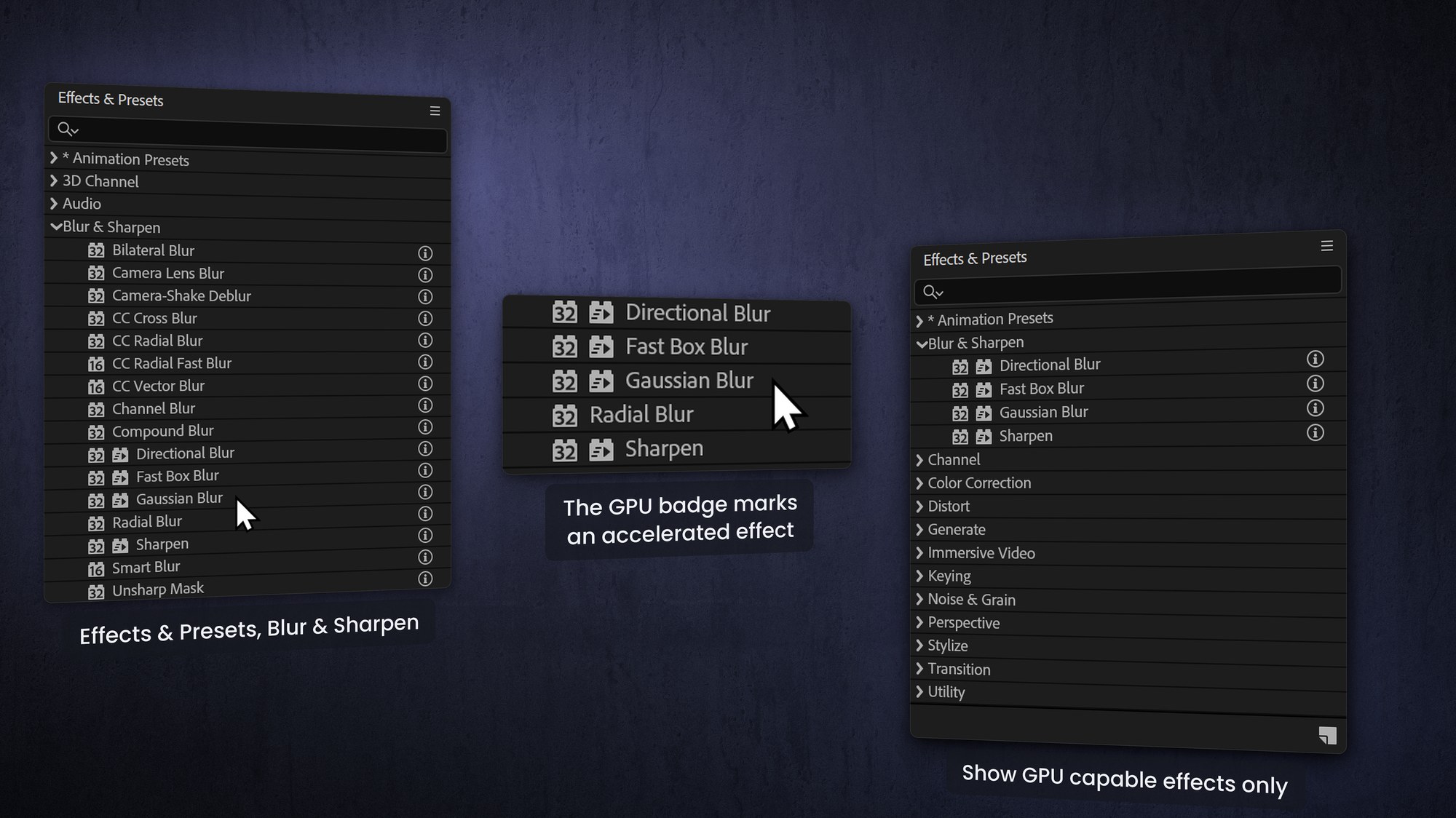
Plenty of performance is wasted on pixels nobody asked to be dynamic. Pre-render complex but static elements, like animated backgrounds, to a video file if the editor never changes them. Avoid importing unnecessarily high-resolution stills and video, scale them down before import if the extra resolution is not used. And prefer GPU-accelerated effects, marked with the little Lego-brick icon, over CPU-only effects, because they render much faster.
Split the uber-MOGRT
It is tempting to cram everything into one mega-template, but one giant template with hundreds of layers, expressions and effects is hard to play back. Often it is better to split it into several smaller templates with fewer moving parts. It is a balancing act with user-friendliness, but leaner usually wins.
When all else fails, Render and Replace
Some templates are complex by nature and simply cannot be optimized enough to play in real time. That is when you render, but do it the smart way. I see a lot of editors taught to hit Enter to render In to Out, which means re-rendering every time the clip moves or the footage underneath changes.
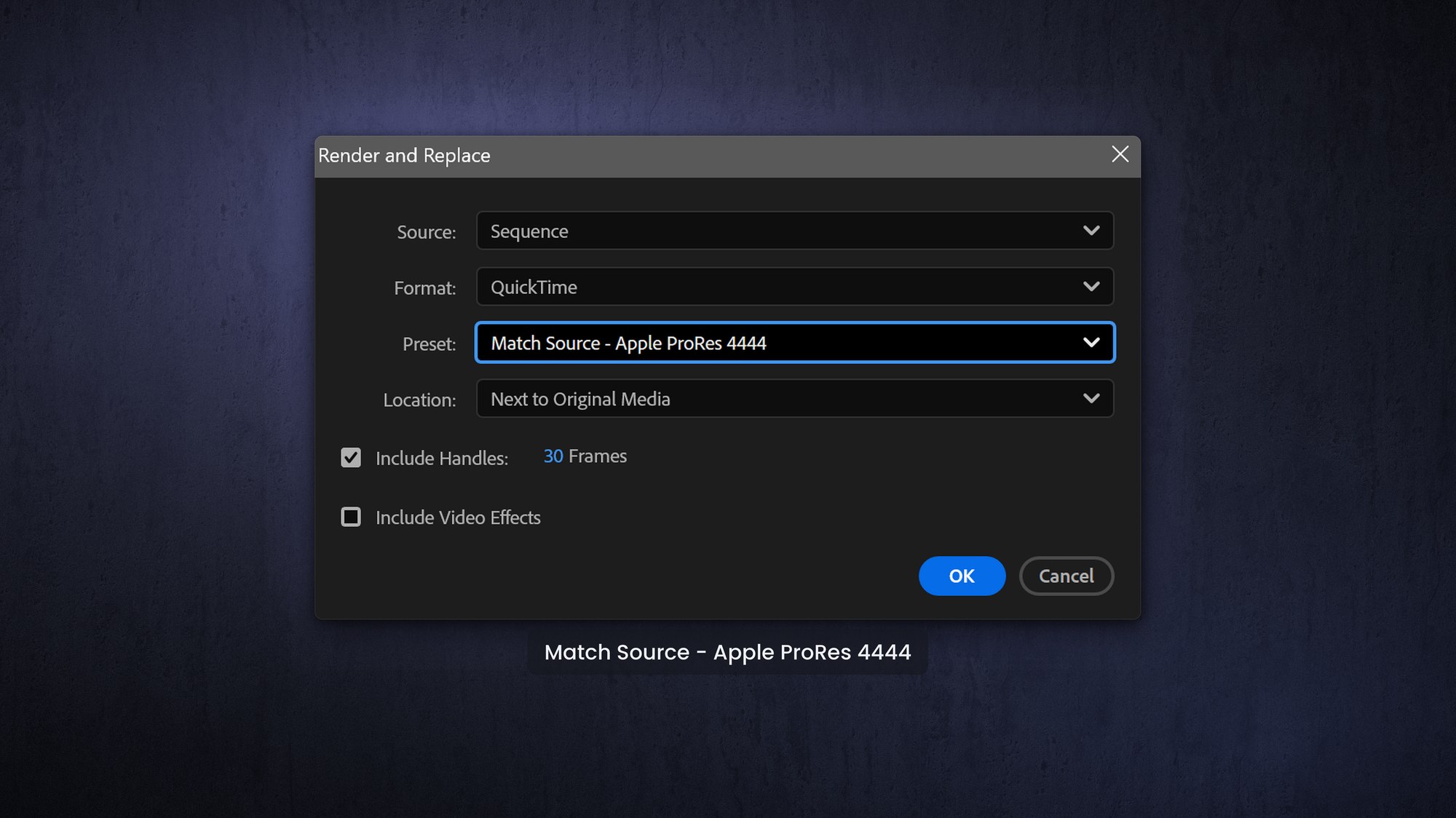
Use Render and Replace instead. Render to ProRes 4444 to keep transparency, move the clip around freely with no re-rendering, and use Restore Unrendered when you need the live controls back. As a bonus, it frees up RAM. Map both to keyboard shortcuts.
Always test in Premiere
After Effects can lie to you. A template that previews fine in After Effects can still stutter in a busy Premiere project, so test every template for smooth playback in Premiere itself before you call it done.
Optimizing and then testing in Premiere is a non-negotiable step in the MOGRTizer build process, and it should be in yours. Show the Dropped Frames Indicator in the Program Monitor if you want to know how many frames are dropped during playback.
Frequently asked questions
Why is my MOGRT dropping frames?
Usually the template is too heavy for real-time playback, often from expensive expressions, high-res media, or CPU-only effects. Profile it, lighten it, and use Render and Replace if needed.
What is Render and Replace and why use it?
It renders a clip to a file (use ProRes 4444 for transparency) so it plays smoothly, while letting you move it without re-rendering and restore the live template later with Restore Unrendered.
Does posterizeTime help MOGRT performance?
It can. By reducing how often an expression is evaluated, posterizeTime lowers the render cost of properties that do not need to update on every frame.
Should I convert expressions to keyframes?
Yes, when the editor never needs to change that property. Baking it to keyframes (or Hold keyframes) avoids recalculation and speeds up playback.