Plug-in for Premiere and DaVinci Resolve Studio
Your graphics on the timeline, straight from a spreadsheet
Prepare every title for a video in a spreadsheet or the online Data File Builder. The Timeline Plotter puts each graphic at the right timecode, fills in the text and menu choices, and sets the duration. One click for the whole titling job.
Sixty names, one Word document, and an afternoon of copy-paste
The producer sends a list: timecodes, names, titles. Sixty of them. So you drag a lower third onto the timeline, type a name, type a title (or copy/paste, if you're lucky), trim it to length, move the playhead to the next timecode — and do it all again. And again.
That isn't editing. It's data entry, done by the person with the most expensive hourly rate in the room. And every name you retype is another chance for a typo on screen.
The Timeline Plotter splits the job. The producer, the journalist or whoever has the facts types every name, title and bullet list into the data file — spelled right, once. You copy the timecodes from your timeline into the file and run the panel.
What does the Timeline Plotter do?
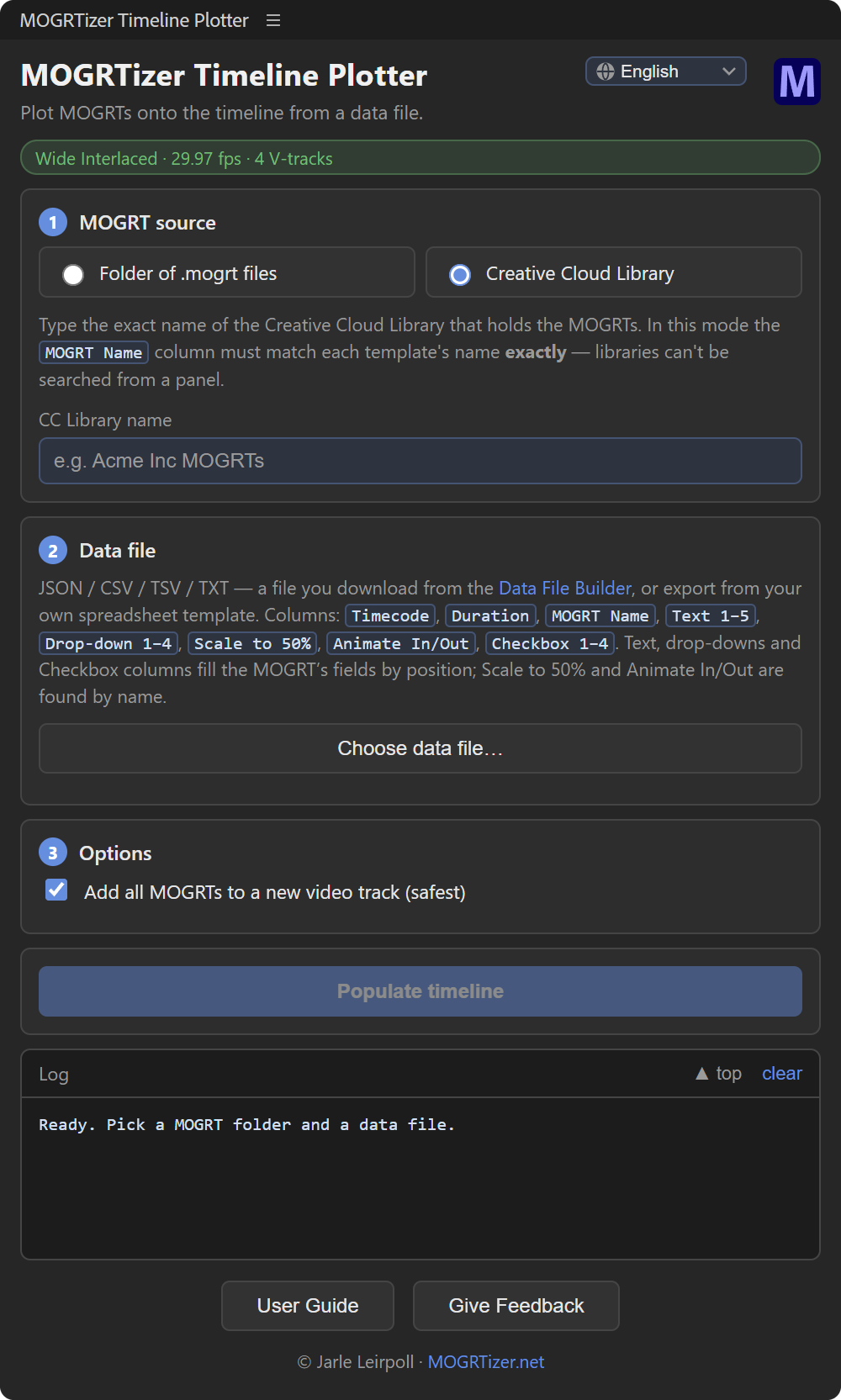
It's a panel for Adobe Premiere and DaVinci Resolve Studio that reads a data file — one row per graphic — and builds the graphics track for you. Each row says which template, where it starts, how long it stays, the text, and the drop-down and checkbox choices. Click Populate timeline, and every graphic lands on the timeline, filled in.
It works with any Motion Graphics template, not just mine.
How does it work?
- Make the data file. In the free online Data File Builder, or in the MOGRTizer Data Template spreadsheet for Excel and Google Sheets. One row per graphic. No editing program needed, so anyone on the team can do it.
- Point the panel at your templates. In Premiere: a folder of
.mogrtfiles, or the name of a Creative Cloud Library. In DaVinci Resolve Studio: the folder with your.ograffiles. - Populate the timeline. Choose the data file and click. The log reports every row, so you see at once if a template name didn't match.
What goes in the data file?
| Column | What it does |
|---|---|
| Timecode | Where the graphic starts. HH:MM:SS:FF, HH:MM:SS, MM:SS or seconds. |
| Duration | How long it stays. MM:SS:FF, minimum 00:02:00. |
| MOGRT Name | Which template. From a folder, the name can be partial — "Lower Third" finds "Lower Third | Acme Inc". From a Library (Premiere only), it must match exactly. |
| Text 1–6 | The template's text fields, in order. |
| Drop-down 1–4 | The choice number for each drop-down, 1–6. |
| Checkbox 1–4 | TRUE or FALSE. |
| Scale to 50% · Animate In/Out | Found by name, so they always do what they say. |
A blank text cell empties that field, and so does a text field the data file leaves out. A blank drop-down or checkbox cell keeps the template's own value. Sample files are included with the panel.
What is it good for?
- Interviews and documentaries — every name super, straight from the producer's list.
- Conferences and events — the speaker list becomes a track of lower thirds.
- Training and e-learning — chapter titles and on-screen steps from the script.
- Another brand, same edit — point the panel at a different folder of templates and run the same data file again.
What do I need?
- Adobe Premiere 26.0 or newer, Windows or macOS.
- Or DaVinci Resolve Studio 21.1.2 or newer, Windows or macOS, with the OGraf versions of the templates.
- In Premiere: any Motion Graphics templates, in a folder or a Creative Cloud Library. In Resolve Studio: the OGraf versions of your MOGRTizer templates, in a folder.
- Included with every MOGRTizer template package. Also coming soon to Adobe Marketplace.
- Install steps in the Guides.
A UXP version of this plugin will be available once Adobe has achieved full feature parity for UXP plugins in Premiere.
FAQ
Frequently asked questions
Does it work with templates that aren't from MOGRTizer?
Yes, in Premiere. Text, Drop-down and Checkbox columns fill any template's fields in order, so it works with any Motion Graphics template. In DaVinci Resolve Studio it has only been tested with MOGRTizer's OGraf templates.
Should I save my spreadsheet as CSV?
Save it as TSV (Tab-delimited) instead. European Excel writes semicolons in CSV files, and a comma in a name breaks the columns. Why TSV is the safer bet.
Will it mess up my edit?
By default it places the graphics above the highest track with clips, so nothing on your existing tracks is touched, and it uses an extra track where two graphics overlap. You can also choose a track yourself.
What happens if a template name doesn't match?
That row is skipped and reported in the log. The rest are placed.
Does it work in DaVinci Resolve?
Yes. Every package also includes the Timeline Plotter for DaVinci Resolve Studio 21.1.2 or newer, Windows or macOS. It reads the same data file. Point it at the folder with your .ograf templates: it imports them into a Media Pool bin called MOGRTizer Templates and places every graphic above the clips already on the timeline. Remove last plot takes the last run off the timeline again.
It needs the Studio version: the free version of Resolve can't run panels.
Get the Timeline Plotter with your templates
Every MOGRTizer package comes with the Timeline Plotter, Batch Sync, Resolution Swap and the free Safe Zones MOGRT. Your colors, your fonts, every aspect ratio.