Why TSV files are a safer bet than CSV for MOGRTs
If you build your data file in Excel, a plain CSV can quietly break your beautiful data binding graph/diagram MOGRTs, your curated list of names for the Lower Thirds, and make your MOGRTs fail before it ever reaches the MOGRTizer Timeline Plotter. Here’s why — and the super simple fix.
The short version
Export a TSV, not a CSV. A TSV separates columns with a Tab, and a Tab never shows up inside a name, a title, or a number — so your columns can’t drift. A CSV separates with a comma, and commas are everywhere in real text, and also in European numbers.
The comma is the problem
“CSV” means comma-separated values. That’s fine until a value itself contains a comma — which happens constantly in titling data: John Smith, Jr. · Director, Sales · Oslo, Norway. Each of those is one field, but a comma-separated file reads the comma as “new column”, so the row splits into the wrong number of columns and every value after it shifts one place.
Excel makes it worse
In Europe, and in large parts of the world, the comma is the decimal separator (19,50, not 19.50). To avoid a clash between decimal commas and column commas, Excel silently switches its column separator to a semicolon (;) when you “Save as CSV”. So a Norwegian Excel “CSV” isn’t really comma-separated at all — it’s semicolon-separated, which then fails in any tool expecting real commas.
You end up in a lose-lose: a true comma-CSV breaks on the commas in your text, and Excel’s semicolon-CSV breaks in comma-expecting systems. (The MOGRTizer Data File Builder’s downloads sidestep this because they’re written directly, not through Excel.)
It’s most of the world, not just Excel
The comma-as-decimal convention isn’t a quirk of one program — it’s how much of the planet writes numbers. Everywhere shown in blue below uses the comma as its decimal separator, which is exactly where a comma-delimited file turns ambiguous.
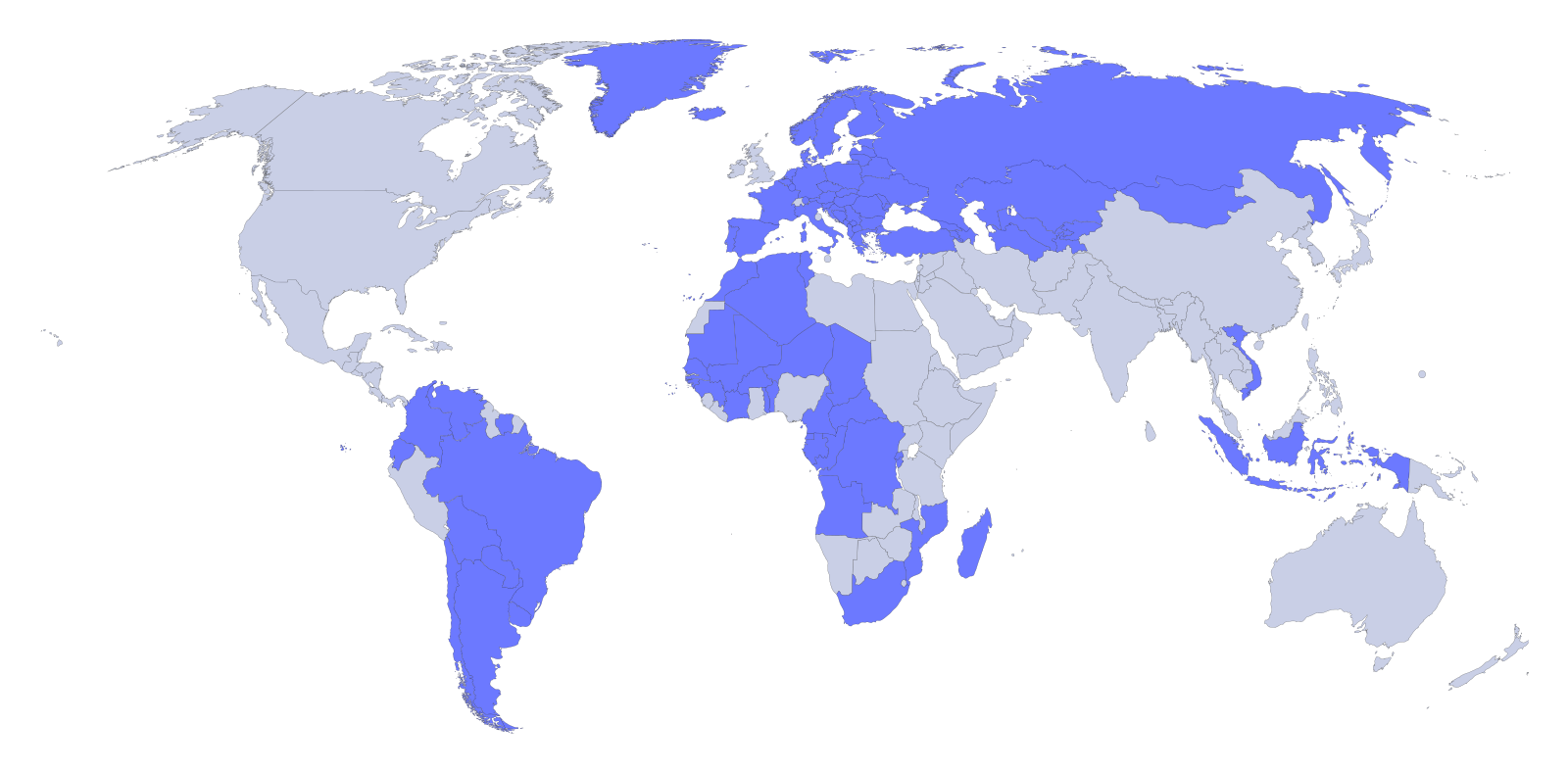
Comma decimal (semicolon-CSV territory) Point decimal. Illustrative — conventions can vary within a country, but a TSV reads correctly in every one of them.
TSV sidesteps all of it
A Tab-separated file uses the Tab character between columns. Tabs don’t appear inside names, titles, timecodes, or numbers, and they don’t collide with any decimal mark — so a TSV reads the same everywhere, in every locale. The MOGRTizer Timeline Plotter reads TSV, CSV (comma and semicolon) and JSON, but TSV is the one that can’t surprise you.
| Format | Separator | Reliable? |
|---|---|---|
| Comma CSV | , | No — it splits on in-line commas in the text |
| Excel “CSV” (EU) | ; | Only in semicolon-aware tools |
| TSV | Tab | Yes — everywhere |
Bottom line:
When you export an Excel spreadsheet for use in the MOGRTizer Timeline Plotter, choose Tab-separated (.tsv). Google Sheets wraps text with commas in "", which results in a valid CSV. In Excel, pick "Text (Tab delimited)" as the file type.
See it for yourself
Edit the first row — names, titles and cities often contain commas — then see the file each format produces and, below, the table it opens into. Three more rows are already filled in.
These files are only meant to show the problem and the solution — not for actual use.
The MOGRTizer Data File Builder writes valid JSON and CSV for you — this page is just for when you’d rather work in your own spreadsheet.